Hard Drive or SSD Problems: Step-by-Step Solutions
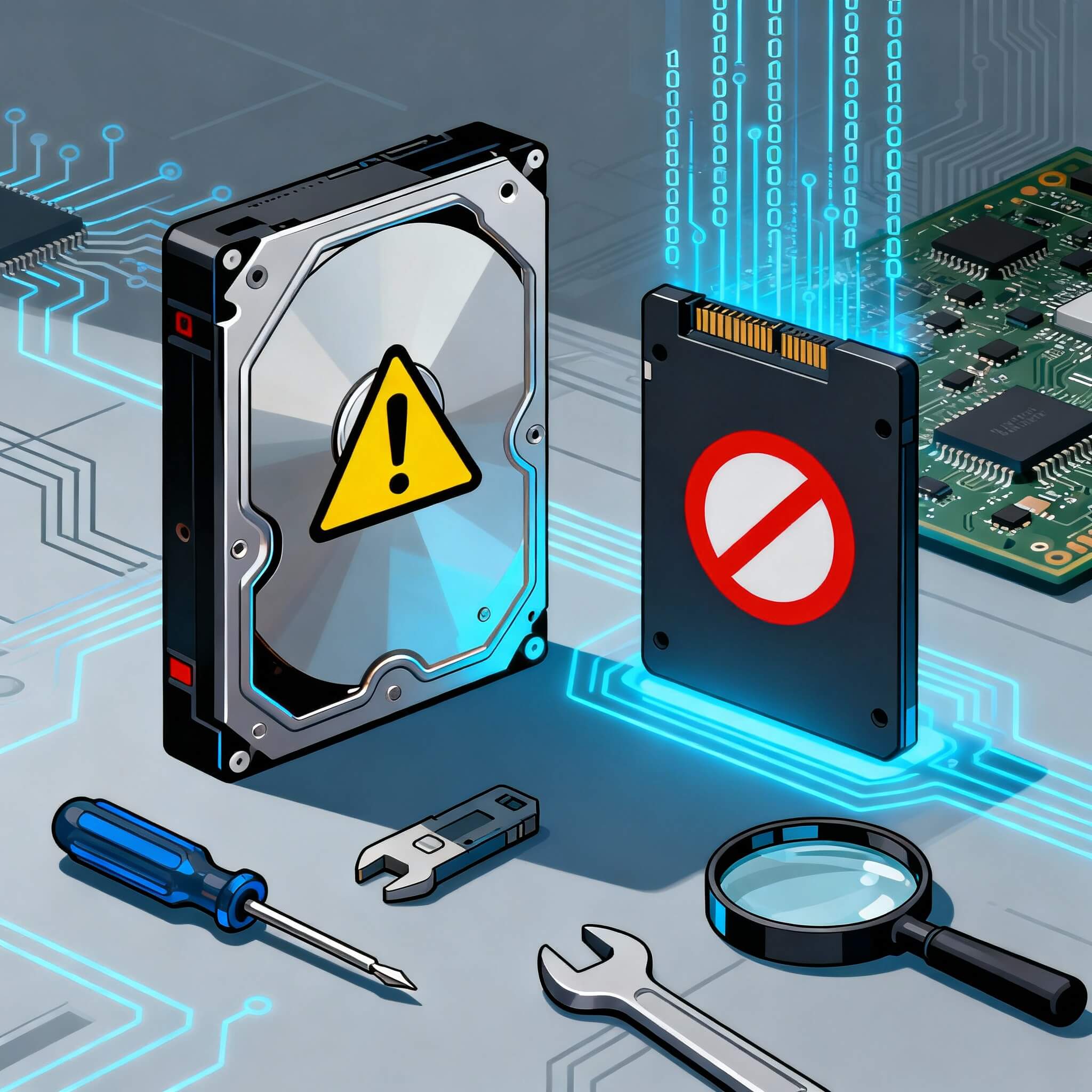
Learn how to fix hard drive or SSD issues easily. Simple step-by-step guide for beginners to check, repair, recover data, and prevent future failures.
Understanding Your Drive
Your Hard Drive (HDD) or Solid-State Drive (SSD) is the part of your computer where all your files, apps, and the operating system (Windows, macOS, or Linux) are stored.
If this drive starts having problems, your computer may:
- Become very slow
- Show blue screen or error messages
- Lose files or fail to start properly
So it’s important to recognize early warning signs and fix them before the drive completely fails.
Warning Signs That Your Drive Is in Trouble
Here are the most common signs of drive problems:
For Hard Drives (HDD):
- Clicking, grinding, or beeping sound
- Takes too long to start or open files
- Some files disappear or become unreadable
- You get messages like “Disk Error” or “Windows detected a hard disk problem”
For Solid-State Drives (SSD):
- Files not opening or taking long to copy
- Suddenly becomes “read-only” (you can’t save anything new)
- Computer doesn’t detect the drive at all
- Windows boots up but very slowly
- Sudden system crash without noise
If you notice any of these, don’t ignore them. These are early warnings that your drive might fail soon.
First Safety Steps
Before trying any repair, take these precautions:
- Stop using the drive for saving new data.
The more you use it, the higher the risk of losing files permanently. - Turn off your computer if you hear strange sounds (clicking or grinding).
- If your data is very important, don’t try to fix it yourself.
Take it to a professional data recovery center. - If the drive feels hot or smells like something is burning,
unplug your computer from power immediately.
Basic Checks
Before you assume the drive is dead, check a few simple things first.
Step 1: Check the Power and Cables
- Shut down your computer completely.
- Open the case (if it’s a desktop) or remove the external drive cable.
- Reconnect the power cable and data cable (SATA/USB) securely.
- Try using a different cable or a different USB port.
- Restart your computer.
Loose cables or bad ports are one of the most common reasons drives don’t show up.
Step 2: Try on Another Computer
- Disconnect the drive from your current computer.
- Connect it to another computer using the same or a different cable.
- If the other computer detects it, the drive is fine — your original computer’s cable or port might be bad.
If it doesn’t show up on another computer, continue to the next step.
Step 3: Check in “This PC” or “Disk Management” (Windows)
- Press Windows + X → click Disk Management.
- See if your drive appears there.
If it shows up but has no drive letter (like C: or D:),
Right-click → choose Change Drive Letter and Paths → Add → assign a letter (e.g., E:).
If it still doesn’t appear, move to health checking.
Checking Drive Health
You can easily check your drive’s health using free tools.
Step 1: Download CrystalDiskInfo (Windows)
- Go to https://crystalmark.info/en/software/crystaldiskinfo/
- Download and install it.
- Open the program.
You’ll see:
- Blue “Good” — your drive is healthy.
- Yellow “Caution” — your drive is starting to fail.
- Red “Bad” — your drive is in danger. Back up immediately!
Step 2: Use Built-in Tools (macOS/Linux)
- Mac: Open Disk Utility → Select drive → Click First Aid.
- Linux: Use Disks app → Click SMART Data → Run health test.
If the test says “Bad” or shows lots of errors, replace or back up immediately.
Fixing Common Problems: One by One
1. Drive Not Detected
Possible Cause: Bad cable, loose connection, or power problem.
What To Do:
- Replace the cable.
- Try another USB or SATA port.
- Test on another PC.
- If external, try a different enclosure or adapter.
If still not detected → possible hardware damage. Go to a technician.
2. Files Missing or “Corrupted”
Possible Cause: File system damage (software problem).
What To Do (Windows):
- Open Command Prompt (Admin).
- Type: chkdsk D: /f
- Replace D: with your drive letter.)
- Press Enter and wait for Windows to fix file errors.
If you use Mac, open Disk Utility → select drive → click First Aid
3. Computer Freezes or Very Slow
Possible Cause: Bad sectors (damaged areas on the drive).
- Backup your files immediately to another drive.
- Use CrystalDiskInfo or manufacturer software (like WD Data Lifeguard or Seagate SeaTools) to check bad sectors.
- If the software shows too many bad sectors — replace the drive.
4. Strange Clicking or Grinding Noise
Possible Cause: Mechanical failure (broken motor or read head).
- Power off immediately.
- Don’t tap or shake the drive.
- Do not open it — it must be repaired in a dust-free
5. SSD Suddenly Stops Working
Possible Cause: Controller issue or firmware problem.
- Download the official SSD tool:
- Samsung: Samsung Magician
- Crucial: Crucial Storage Executive
- Kingston: SSD Manager
- Check for firmware updates in the tool.
- If it still doesn’t work, the SSD may be worn out → replace it.
Recovering Lost Data
If your drive is detected but files are missing or deleted, you can use recovery software.
Option 1: Recuva (Windows)
- Download from https://www.ccleaner.com/recuva
- Install and open it.
- Choose your drive (e.g., D:).
- Click Scan → it will show recoverable files.
- Save recovered files to another drive, not the same one.
Option 2: PhotoRec (Windows/Linux/Mac)
- Free, open-source tool.
- Scans for deleted files and saves them elsewhere.
- Works even if the file system is broken.
When to Replace the Drive
You should replace your drive if:
- You hear unusual sounds.
- It keeps disconnecting.
- Health check shows “Caution” or “Bad.”
- It’s more than 3–5 years old.
- You already had to repair it multiple times.
How to Prevent Future Problems
Here’s how to keep your drives healthy:
- Backup regularly:
Use cloud (Google Drive, OneDrive) or an external USB drive. - Use a UPS:
It protects your computer from sudden power cuts. - Keep drives cool:
Avoid overheating — clean dust regularly and ensure good airflow. - Don’t overfill SSDs:
Keep at least 10–20% free space. - Check drive health monthly:
Run CrystalDiskInfo or your manufacturer tool. - Avoid fake drives:
Buy only from trusted stores and brands.
Frequently Asked Questions
1. What causes hard drive or SSD failure?
Hard drives and SSDs can fail due to power surges, overheating, physical damage, bad sectors, or old age.
Sometimes even loose cables or fake drives bought online can cause sudden failure.
2. How do I know if my hard drive or SSD is failing?
- Computer takes too long to start
- Strange clicking or grinding noise
- Files disappear or take forever to open
- System freezes or restarts randomly
- You see errors like “Disk not found” or “File system corrupted”.
3. Can a failed hard drive or SSD be repaired?
It depends on the type of problem:
- If the issue is software-related (like corrupted files), you can fix it using tools like CHKDSK or CrystalDiskInfo.
- If it’s a hardware issue (like broken parts or severe damage), you’ll need help from a professional data recovery service.
4. How can I fix my hard drive or SSD at home?
Here are simple steps:
- Check cables and connections.
- Try a different USB port or power cable.
- Run CHKDSK command (in Windows) to repair small file errors.
- Use CrystalDiskInfo to check health status (Good, Caution, or Bad).
- Backup your data if you see warnings or errors.
- Replace the drive if it still doesn’t work properly.
You can use:
- CrystalDiskInfo (Windows) — Free and easy to use.
- Disk Utility (Mac) — Built-in tool for Mac users.
- GNOME Disks (Linux) — Shows drive status and health info.
They’ll show a “Health Status” — if it says Caution or Bad, replace your drive soon.
Try these quick fixes:
- Plug the drive into another USB port or different computer.
- Use a new cable.
- Open Disk Management (Windows) and see if the drive appears.
- If it’s still missing, it could be a hardware failure — contact a professional.
7. How do I recover data from a damaged drive?
You can use free tools like:
- Recuva (for Windows)
- PhotoRec (for any OS)
Important: Save recovered files to another working drive — not the same one.
If the drive is not detected at all or making noise, don’t try recovery at home — visit a data recovery center.
8. Can I prevent hard drive or SSD failure?
- Always keep a backup of your data.
- Avoid sudden power cuts (use UPS).
- Keep your computer cool and dust-free.
- Don’t fill SSDs completely — leave 10–20% space free.
- Check drive health once every few months.
- Replace drives every few years to avoid sudden crashes.
9. What is the lifespan of a hard drive or SSD?
- Hard drives (HDDs): 4–6 years (on average)
- SSDs: 3–5 years (depends on usage and quality)
Always replace the drive if it shows health warnings or strange behavior.
10. Which is better — SSD or HDD?
- SSD: Faster, quieter, more durable (no moving parts)
- HDD: Cheaper, more storage for less cost
For speed and reliability, SSD is better.
For large storage (like movies, backups), HDD is more cost-effective.
11. Is data recovery possible after formatting a drive?
Yes — but only if you haven’t written new data to it yet.
Use recovery tools like Recuva or PhotoRec immediately.
The faster you act, the higher your chances of getting data back.
12. When should I replace my hard drive or SSD?
Replace it when:
- You hear strange sounds
- Computer crashes often
- Files go missing
- Drive health shows “Bad”
- It’s older than 4–5 years (HDD) or 3+ years (SSD)
Don’t wait until it completely fails — always backup and replace early.
13. What is the best free software to fix or monitor drives?
Here are some trusted tools:
- CrystalDiskInfo (Windows)
- HD Tune (Windows)
- GSmartControl (Linux, macOS, Windows)
- Disk Utility (Mac)
They’re safe, free, and easy to use for checking your drive’s health.
[…] How to Recover Deleted Files Without Software Windows (Step-by-Step Methods) […]