Windows Remote Desktop Connection: Common Problems & Step-by-Step Solutions
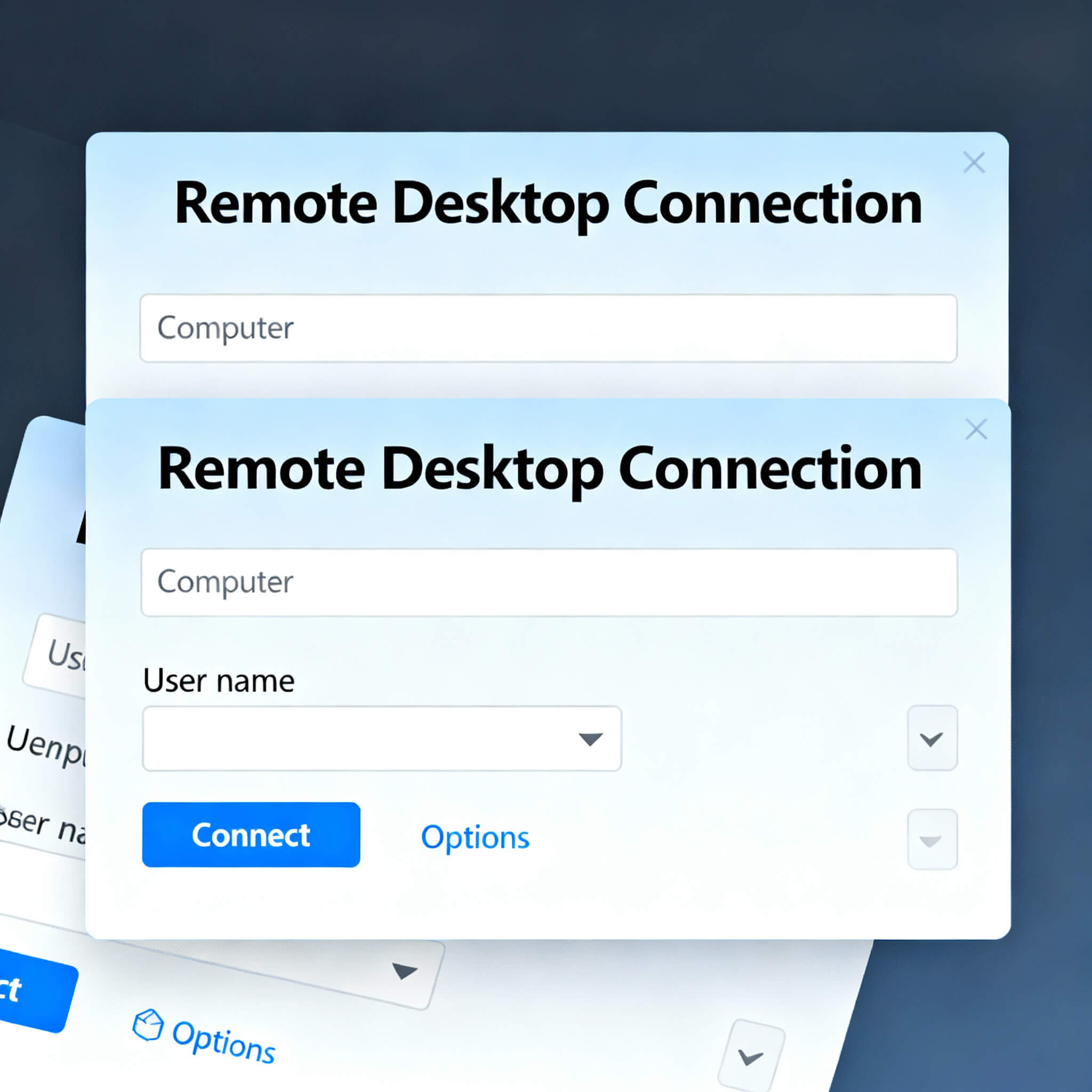
Windows Remote Desktop Connection
Windows Remote Desktop Connection (RDC) is a built-in Windows feature that allows you to connect to and control another Windows computer over a network or the Internet. It’s commonly used for remote work, troubleshooting, or accessing files on another PC.
Learn everything about Windows Remote Desktop Connection (RDC) – common issues, troubleshooting tips, step-by-step solutions, performance optimization, security best practices, for seamless remote access.
1. Requirements
To use Remote Desktop:
- Host PC (the one you want to connect to):
- Must be running Windows Pro, Enterprise, or Education (Home edition cannot act as a host).
- Remote Desktop must be enabled.
- The PC must be turned on and connected to the network.
- Client PC (the one you connect from):
- Can be Windows Home, Pro, or even macOS/Android/iOS using the Microsoft Remote Desktop app.
2. Enable Remote Desktop on the Host PC
- Press
Windows + I→ Open Settings. - Go to System → Remote Desktop.
- Toggle Enable Remote Desktop to On.
- Note the PC name listed (you’ll need this to connect).
Optional: You can also set Network Level Authentication for better security.
3. Connect from the Client PC
- On the client PC, press
Windows + R→ typemstsc→ press Enter.
(This opens the Remote Desktop Connection app.) - Enter the PC name or IP address of the host PC.
- Click Connect.
- Enter the username and password of the host PC account.
- You should now see the host PC’s desktop.
4. Additional Tips
- Firewall: Ensure Windows Firewall allows Remote Desktop connections.
- Router/NAT: For remote connections over the Internet, you may need to forward port 3389 on the router.
- Microsoft Account: You can log in using a Microsoft account instead of a local account.
- Performance: In the RDC window → click Show Options → Experience to adjust display and bandwidth settings.
Windows Remote Desktop Connection (RDC) problems and their troubleshooting solutions.
1. Cannot Connect to the Remote PC
Possible causes: Remote Desktop is disabled, wrong PC name, network issues, firewall blocking.
Troubleshooting Steps:
- Check Remote Desktop is Enabled:
- Host PC →
Settings → System → Remote Desktop→ Enable Remote Desktop.
- Host PC →
- Verify PC Name / IP:
- Host PC →
Settings → System → About→ Copy Device Name. - Use IP if name doesn’t work: Press
Windows + R → cmd → ipconfig → IPv4 Address.
- Host PC →
- Check Network Connection:
- Ensure both PCs are on the same network (or VPN for remote access).
- Firewall Check:
Control Panel → System & Security → Windows Defender Firewall → Allow an app → Remote Desktop→ Check both Private and Public networks.
- Ping Test:
- On client PC →
cmd → ping <host IP>→ If ping fails, network issue exists.
- On client PC →
2. Remote Desktop Shows “Remote Desktop can’t connect to the remote computer”
Possible causes: User account not allowed, port blocked, network issue.
Troubleshooting Steps:
- Check User Permissions:
- Host PC →
Settings → System → Remote Desktop → Select Users→ Add your username.
- Host PC →
- Check RDP Port (Default 3389):
- Ensure router or firewall isn’t blocking port 3389.
- Network Type:
- Ensure Host PC is Private Network, not Public.
- Restart RDP Services:
- Host PC →
services.msc → Remote Desktop Services → Restart.
- Host PC →
3. Wrong Credentials / Login Failed
Possible causes: Typo in username/password, account not allowed, domain mismatch.
Troubleshooting Steps:
- Use the format
PCNAME\UsernameorUsername@Domain. - Verify password is correct and not expired.
- Ensure the account is an Administrator or added in Remote Desktop Users.
- Check if Caps Lock is on/off.
4. Slow Performance / Lag
Possible causes: Low bandwidth, high-resolution settings, unnecessary features enabled.
Troubleshooting Steps:
- In RDC → Show Options → Experience → Select your network speed.
- Disable visual effects: Animations, font smoothing, desktop background.
- Use full-screen resolution suitable for bandwidth.
5. Black Screen After Login
Possible causes: Graphics driver issues, session not initialized, display settings mismatch.
Troubleshooting Steps:
- Disconnect → Reconnect → Try different display settings.
- Update Graphics Drivers on the host PC.
- Restart Remote Desktop Services:
services.msc → Remote Desktop Services → Restart. - Try Safe Mode with Networking and test RDP.
6. Remote Desktop Keeps Disconnecting
Possible causes: Network instability, session timeout, firewall/antivirus interference.
Troubleshooting Steps:
- Check network speed/stability.
- Increase session timeout in Host PC Group Policy:
gpedit.msc → Computer Configuration → Administrative Templates → Windows Components → Remote Desktop Services → Session Time Limits.
- Disable VPN/firewall temporarily for testing.
- Ensure Router QoS isn’t limiting traffic.
7. “Remote Desktop cannot verify the identity of the computer” / Certificate Error
Possible causes: RDP certificate expired or self-signed.
Troubleshooting Steps:
- On RDC login → Check “Connect anyway” if you trust the PC.
- Regenerate RDP certificate on host:
- Delete
C:\ProgramData\Microsoft\Crypto\RSA\MachineKeys(careful!) and restart RDP services.
- Delete
- Update Windows on both PCs.
8. Cannot Connect Over Internet (Home Network)
Possible causes: NAT/router, dynamic IP, ISP blocking.
Troubleshooting Steps:
- Set Static IP or use Dynamic DNS service.
- Forward port 3389 on your router → Point to host PC’s IP.
- Check ISP allows RDP traffic (some block 3389).
- Consider using VPN for secure connection.
Windows Remote Desktop Connection (RDC) FAQ
1. What is Remote Desktop Connection?
Remote Desktop Connection is a Windows feature that allows you to access and control another Windows computer remotely over a network or the Internet.
2. Which Windows editions support Remote Desktop?
- Host (the PC being accessed): Windows Pro, Enterprise, or Education.
- Client (the PC connecting): Any Windows edition, macOS, Android, or iOS (via Microsoft Remote Desktop app).
Windows Home edition cannot act as a host.
3. How do I enable Remote Desktop?
Settings → System → Remote Desktop→ Toggle Enable Remote Desktop.- Note the PC name or use the IP address to connect.
4. How do I connect to a remote PC?
- Press
Windows + R→ typemstsc→ Enter. - Enter the PC name or IP address.
- Enter the username and password.
- Click Connect.
5. Can I connect to a PC outside my home network?
Yes, but you need:
- Port forwarding on your router (default RDP port 3389).
- Or use a VPN to securely connect to the remote network.
6. Why can’t I connect to the remote PC?
Common reasons:
- Remote Desktop not enabled.
- Firewall blocking RDP.
- Wrong PC name/IP or credentials.
- Network issues.
Solution: Check settings, firewall, username, and network connection.
7. Why does Remote Desktop keep disconnecting?
- Network instability or low bandwidth.
- Session timeout settings.
- Firewall or antivirus interference.
Solution: Stabilize network, adjust session timeout, check firewall.
8. Why do I see a black screen after login?
Possible reasons:
- Graphics driver issues.
- Display resolution mismatch.
- Session not initialized properly.
Solution: Update drivers, reconnect with lower resolution, restart RDP services.
9. Can multiple users connect to a PC simultaneously?
- By default, Windows does not allow multiple users simultaneously.
- Only one active session per PC.
- For multiple users, you need Windows Server with Remote Desktop Services.
10. How secure is Remote Desktop?
- RDP traffic is encrypted, but exposing RDP directly to the Internet can be risky.
- Use Network Level Authentication (NLA) and strong passwords.
- For Internet access, use VPN instead of exposing port 3389.
11. Can I use Remote Desktop on a Mac or smartphone?
Yes. Download Microsoft Remote Desktop app for:
- macOS
- iOS
- Android
12. What port does Remote Desktop use?
- Default port: 3389.
- Can be changed in the registry if needed.
13. Can I copy files using Remote Desktop?
Yes:
- Enable Clipboard and Drive sharing in RDC options → Local Resources → More → Check drives.
- Then you can copy/paste files between client and host.
14. How can I improve Remote Desktop performance?
- Reduce display resolution.
- Disable visual effects (animations, font smoothing, desktop background).
- Use a faster network (LAN preferred).